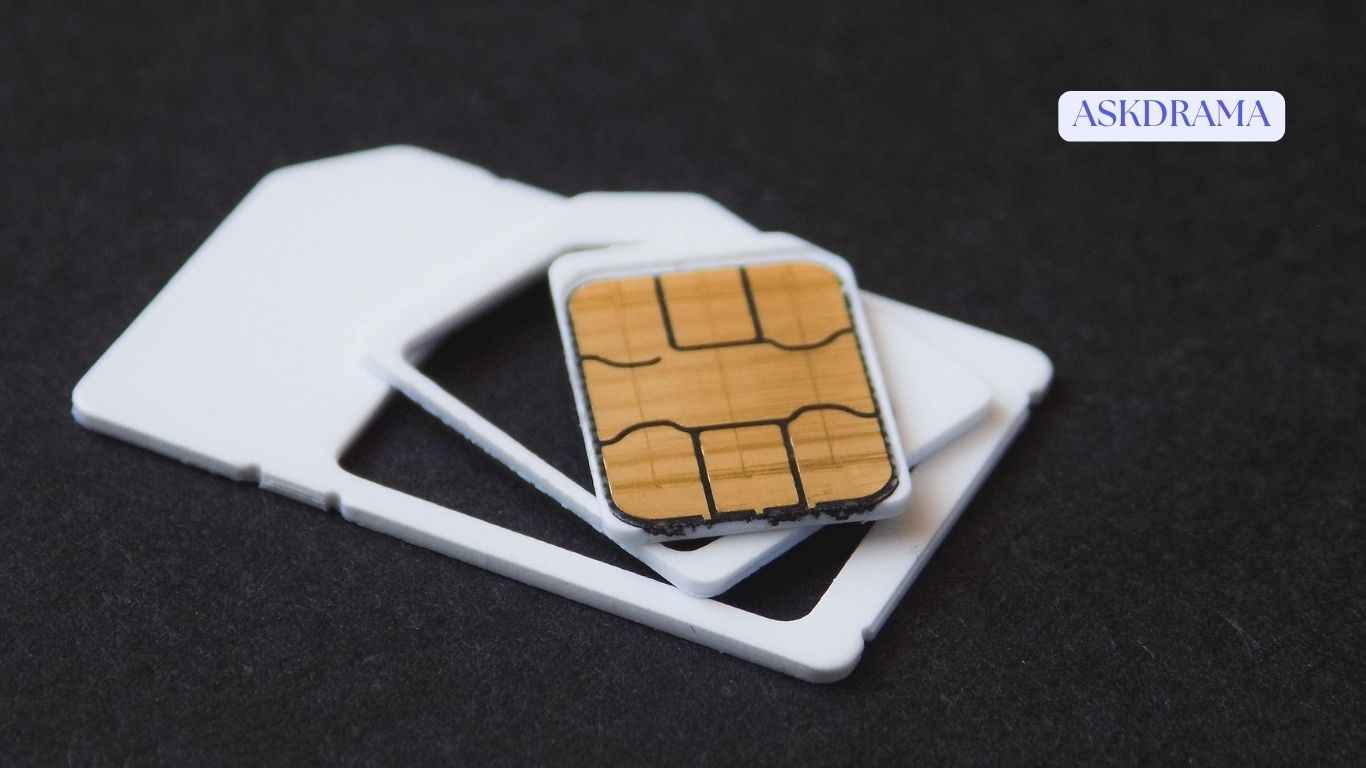
This issue can happen suddenly, even if your SIM card was working perfectly before. Fortunately, in most cases, the problem is easy to fix without needing technical expertise.
In this complete guide, you will learn how to fix the “No SIM card detected” error on Android devices using simple and effective methods.
Why Does “No SIM Card Detected” Happen?
Before fixing the issue, it’s important to understand the possible causes:
- Improper SIM card placement
- Dust or dirt in the SIM tray
- Network or carrier issues
- Software glitches
- Damaged SIM card or tray
Let’s go through the solutions step by step.
1. Restart Your Phone
This is the simplest fix and often resolves temporary system glitches.
Restart your phone and check if the SIM card is detected after reboot.
2. Turn Airplane Mode On and Off
Airplane mode resets your network connections.
Turn it on for about 20–30 seconds, then turn it off again. This can help your phone reconnect to the network.
3. Remove and Reinsert the SIM Card
Your SIM card may not be properly seated.
- Turn off your phone
- Remove the SIM card tray
- Take out the SIM card
- Clean it gently with a soft cloth
- Insert it back correctly
Turn your phone back on and check if the issue is resolved.
4. Check the SIM Card for Damage
If your SIM card is scratched or damaged, it may not work properly.
Try inserting the SIM card into another phone. If it still doesn’t work, you may need a replacement from your carrier.
5. Test with Another SIM Card
This helps determine whether the problem is with your phone or the SIM card.
If another SIM works in your phone, your original SIM card is likely faulty.
6. Check Network Settings
Incorrect network settings can cause SIM detection issues.
- Go to Settings
- Tap Connections
- Select Mobile Networks
- Ensure the correct network mode is selected
Use automatic network selection for best results.
7. Reset Network Settings
Resetting network settings can fix configuration errors.
- Go to Settings
- Tap General Management
- Select Reset
- Tap Reset Network Settings
This will remove saved WiFi and Bluetooth connections.
8. Update Your Phone Software
Software bugs can sometimes cause SIM detection issues.
- Go to Settings
- Tap Software Update
- Install available updates
Restart your phone after updating.
9. Clean the SIM Tray Slot
Dust or debris inside the SIM slot can block proper contact.
Use a soft brush or compressed air to clean the slot carefully.
10. Check for Carrier Issues
Your network provider may be experiencing outages.
Contact your carrier to confirm if there are any network problems in your area.
11. Enable SIM Card in Settings
Some phones allow you to disable SIM cards manually.
Go to SIM card settings and make sure your SIM is enabled.
12. Factory Reset (Last Option)
If none of the solutions work, you can perform a factory reset.
This will erase all data and restore your phone to its original state.
- Go to Settings
- Tap General Management
- Select Reset
- Tap Factory Data Reset
Make sure to back up your data before proceeding.
Tips to Prevent SIM Card Issues
- Handle your SIM card carefully
- Avoid removing it frequently
- Keep your phone clean
- Use a protective case
- Update your device regularly
Final Thoughts
The “No SIM card detected” error on Android devices can be frustrating, but it is usually caused by simple issues like improper placement, dirty contacts, or software glitches.
By following the steps in this guide, you can quickly identify the problem and restore your network connection.
If the issue persists, consider replacing your SIM card or checking your phone hardware.
With proper care, your device should recognize your SIM card without any problems.